Posts

What is API

Image
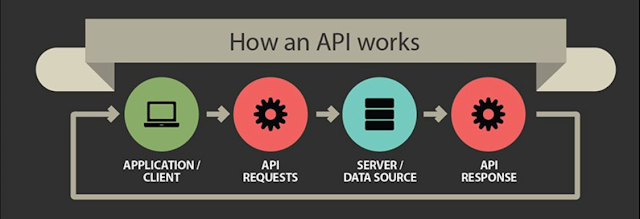
An API is an interface between software programs that facilitates interaction the way a user interface facilitates interaction between humans and computers. An application program interface that provide a developer with programmatic access to a proprietary software application. A software intermediary that makes it possible for application programs to interact with each other and share data. How does API works? API working is simple it take request, the process it and send back to the response. Lets take an example to understand it better. Lets say you are in italy and you hungry, you go to bakery shop and want to have cannoli but you don’t know how to speak italian. Below image will show you how you request is being processed and end user get the response. API Protocols Basically there are thee type of protocols, which are as follow. 1.  REST : Representation State Transfer is a simple way of sending and receiving data between client and s...
Currency Symbol in NopCommerce

Image
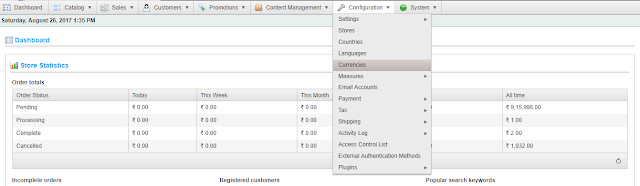
NopCommerce an open source ecommerce platform on the web. I have discussed the features of it in my previous blog. If you have missed it you can find it here In this blog, we will configure the setting for displaying  currency  symbol. I will take example of displaying indian rupee symbol. In the admin panel open Currencies section from Configuration -> Currencies                                                                                                                                    You can open the demo admin panel from here Add new Currencies by clicking the add new button on top right corner as shown in belo...

Change font and size in visual studio

Image
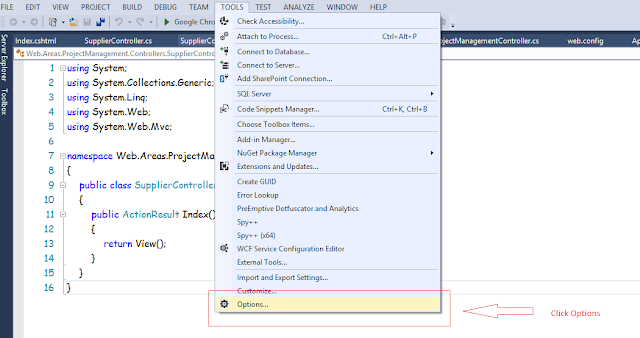
Visual studio comes with feature to customize font and size. Let us see how we can change the font and size in visual studio. We can do that by going to        tools -->  options                                                                                                                                 Below is the screenshot for reference: Under environment tab select Font and color section.         environment --> font and color                                                   ...

Resizing and Repositioning controls using canvas Drag drop.

Image
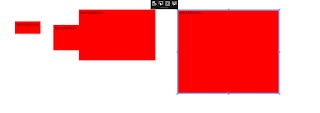
In our previous article learned how to position list  of control using Canvas and ItemsControl,In this article we willlearn how to resize and repositions the control using canvas and save their positions i.e. Height/Width of the control  and top/left positions of control as per a canvas. As Controls get the positions from their immediate parent canvas. So we will not be using Itemcontrol to display the controls so that canvas can have full control on the children(the controls that needs to get resized and reposition) Below are the steps we need to follow for this: Step 1: Lets use the same MainWindow and add a canvas control to it.The xaml for MainWindow.xaml should look like as below:         <Grid>             <Grid.RowDefinitions>                 <RowDefinition Height="*"></RowDefinition>             </Grid.RowDefinition...

How to position controls using Canvas control in WPF using MVVM

Image
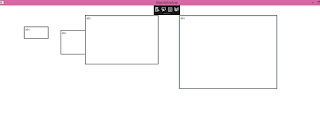
The best way to position different controls using Canvas in MVVM is using ItemsControl.We need to bind ItemsControl with the list of controls and using Canvas control as the ItemsTemplate.Lets understand it in more details using an example. Step 1: Add an ItemsControl in MainWindow. Step 2: Lets create a list containing the different heights, width,top and left poistions for the controls and this list we will be using as the ItemsSource to bind the ItemsControl. Step 3: Lets Create a class under ViewModel folder only named as “ControlDetails”, Class should look like: namespace WpfApplication1.ViewModel {   public class ControlDetails     {         public double Height         {             get;             set;         }         public double Width         {           ...

DataGrid in WPF MVVM

Image
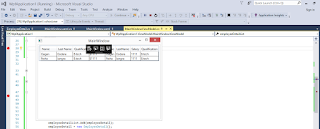
DataGrid in MVVM As we know datagrid plays a vital role in displaying data in our apllications. In this article we will get to know how to bind a datagrid in WPF MVVM. Step 1: Lets add a DataGrid Control in Main Window as below: <Window x:Class="WpfApplication1.MainWindow"         xmlns="http://schemas.microsoft.com/winfx/2006/xaml/presentation"         xmlns:x="http://schemas.microsoft.com/winfx/2006/xaml"         xmlns:d="http://schemas.microsoft.com/expression/blend/2008"         xmlns:mc="http://schemas.openxmlformats.org/markup-compatibility/2006"         xmlns:local="clr-namespace:WpfApplication1" xmlns:i="clr-namespace:System.Windows.Interactivity;assembly=System.Windows.Interactivity"         mc:Ignorable="d"         Title="MainWindow" Height="350" Width="525">     <Grid>         <...